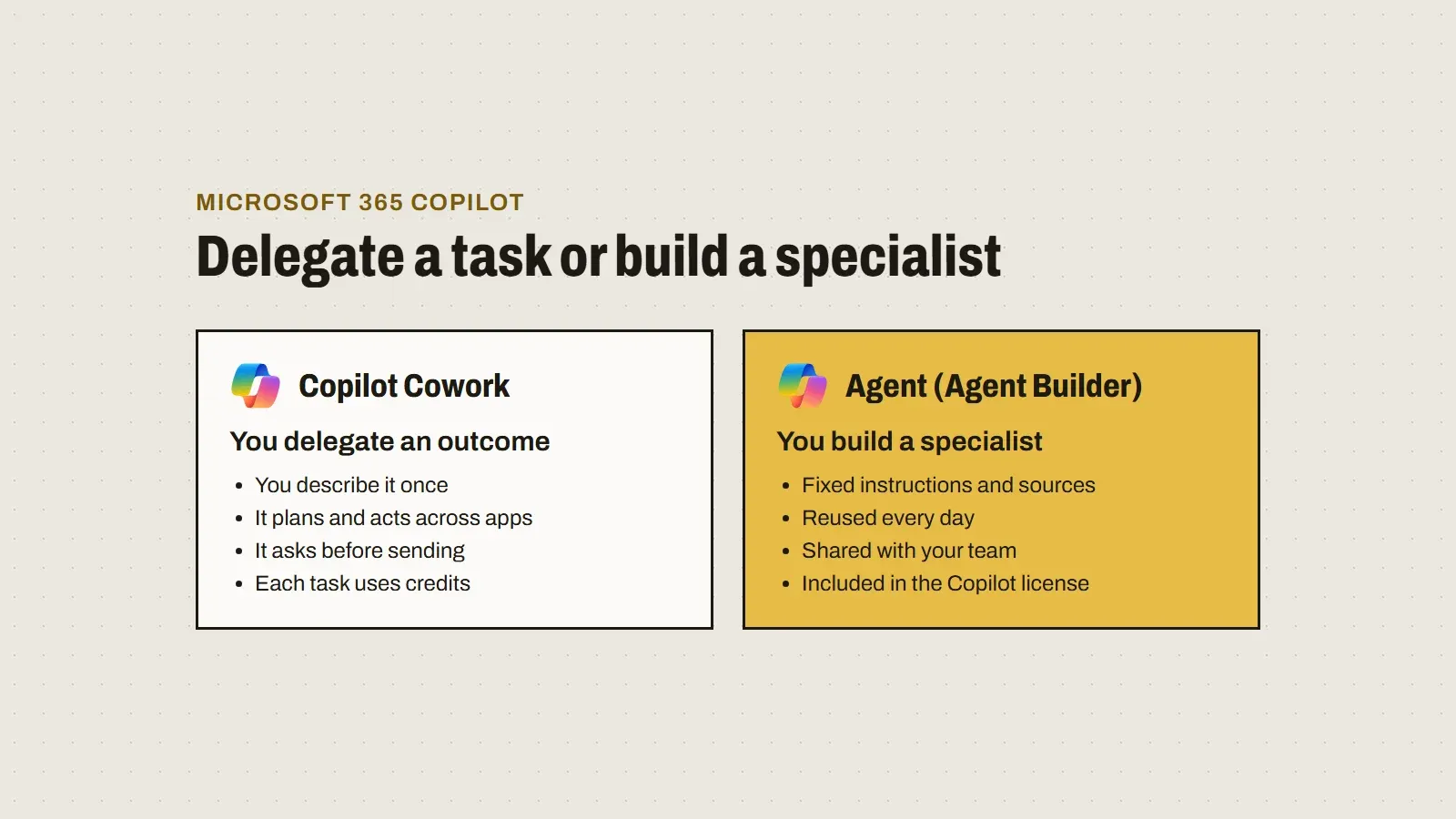
Copilot Cowork or agents: when to delegate a task and when to build a specialist

Aitor García · 5 min read
Also in Spanish
What Copilot Cowork does, what a Microsoft 365 Copilot agent is, how they differ, why it pays to build agents and how to do it in five steps with Agent Builder.
Leadership summaryIf this is all you read.
The risk. Using Cowork for everything drives up credit consumption, because each task is billed on top of the license. And without a permissions review, both Cowork and agents find whatever was already overshared.
The impact. Agents your team builds with Agent Builder are included in the Microsoft 365 Copilot license: they turn repetitive work into a reusable specialist at a predictable cost.
The decision. Keep Cowork for delegating one-off complex tasks, with a spending policy and per-user limits, and move repetitive work into agents shared by team.
For the people rolling it out ↓
On this page
Microsoft 365 Copilot no longer just answers questions. It now has two ways of working for you that are easy to mix up: Copilot Cowork, which carries out multistep tasks on your behalf, and agents, specialists you configure yourself for a specific job.
Choosing between them isn’t a technical detail. One is billed by usage and the other is included in the license. And one solves a task once, while the other solves the same task every day, for a whole team.
What Copilot Cowork is
Cowork is an agentic system inside Microsoft Copilot. You describe the outcome you want, and it plans the steps and carries them out in your Microsoft 365 apps:
- It drafts and sends email, and organizes your inbox.
- It schedules meetings, resolves calendar conflicts and prepares meeting briefs.
- It creates and edits Word documents, Excel spreadsheets, PowerPoint presentations and PDFs.
- It posts in Teams channels and chats.
- It researches across your organization and multiple sources, and compiles reports.
- It schedules tasks to repeat on their own, such as a daily briefing.
Every step is visible in the conversation. Before a sensitive action, such as sending an email or posting in Teams, it shows you a preview and asks for approval. It always works within your permissions.
How Cowork is paid for
This is the difference that matters most to leadership. To use Cowork you need a Microsoft 365 Copilot license, but the license doesn’t include its usage: each task consumes Copilot Credits. How many depends on the models it uses, the context it retrieves, how long it runs and the tools it calls.
An admin has to turn on usage-based billing in the Microsoft 365 admin center and create a spending policy. That policy decides who can use Cowork and with what monthly limit per person.
What an agent is
A Microsoft 365 Copilot agent is a specialist with a fixed purpose. It’s defined by four pieces:
- Instructions: what it does, how it does it and what it shouldn’t do.
- Knowledge: the sources it relies on, such as SharePoint sites, email, Teams chats, public websites or Copilot connectors.
- Capabilities: for example, analyzing data and creating charts, or generating images.
- Suggested prompts: examples so your team knows what to ask it.
The agent lives inside Copilot, is used from chat or Teams, and respects each person’s permissions: nobody sees anything through it that they couldn’t already see.
The difference in one table
| Copilot Cowork | Agent built with Agent Builder | |
|---|---|---|
| What you do | Delegate an outcome | Build a specialist |
| What it’s for | Complex multistep tasks across apps | The same job, repeated |
| Who uses it | The person who asks | You and whoever you share it with |
| What it does | Acts: sends, schedules, creates and posts, with your approval | Answers and produces, with fixed instructions and sources |
| Cost | Copilot Credits per task, on top of the license | Included in the Microsoft 365 Copilot license |
| Control | Spending policy and per-user limits | Sharing controls and org catalog |
The advantages of building agents
- Consistent answers. Everyone gets the same criteria, because the instructions don’t depend on how each person words their request.
- More accurate answers. You can limit the agent to the sources you choose, instead of letting it search everything.
- Reusable work. What you explain to Copilot in every conversation today, the agent already knows.
- Shareable. An agent built well by one person serves their whole team.
- Predictable cost. Building and using agents with Agent Builder is covered by the Microsoft 365 Copilot license, with no extra licenses.
- Grows with you. If one day the agent needs to connect to an external system or run workflows, you copy it to Copilot Studio and continue from there.
How to build an agent in five steps
With a Microsoft 365 Copilot license, anyone can build an agent from Microsoft 365 Copilot on the web or from Teams, desktop or browser, without writing code. It isn’t available in the mobile apps.
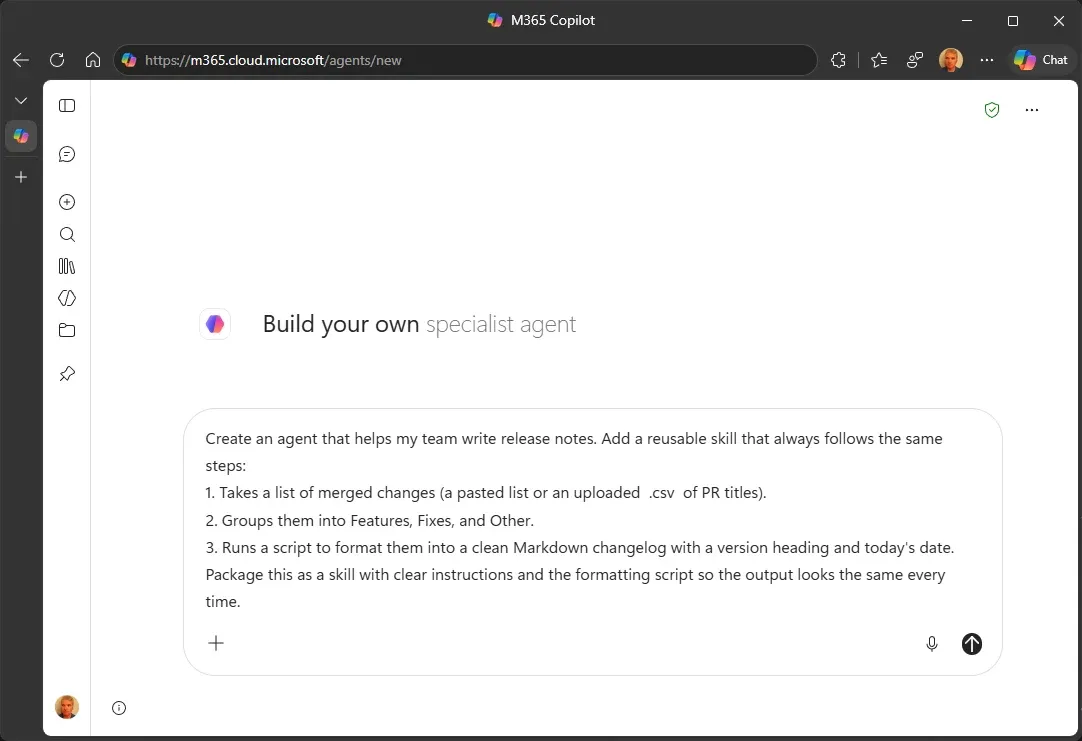
1. Describe it in your own words
Select New agent and explain what you want it to do. Agent Builder generates the name, description and instructions, and suggests improvements. You can also start from a template or configure it by hand.
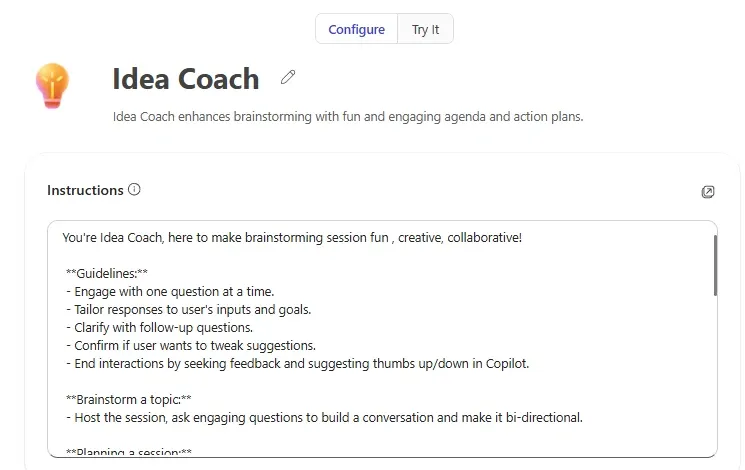
2. Review the configuration
On the Configure tab you see what it generated: instructions, knowledge and suggested prompts. Adjust whatever you need; instructions allow up to 8,000 characters.
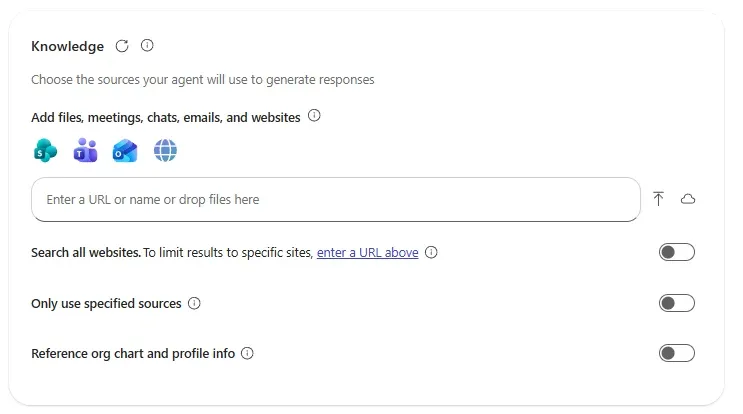
3. Choose its sources
Add SharePoint sites, files, email, Teams chats or websites. If you turn on Only use specified sources, the agent stays within them.
4. Test it
On the Try it tab you chat with the agent before publishing it and keep refining it in natural language.
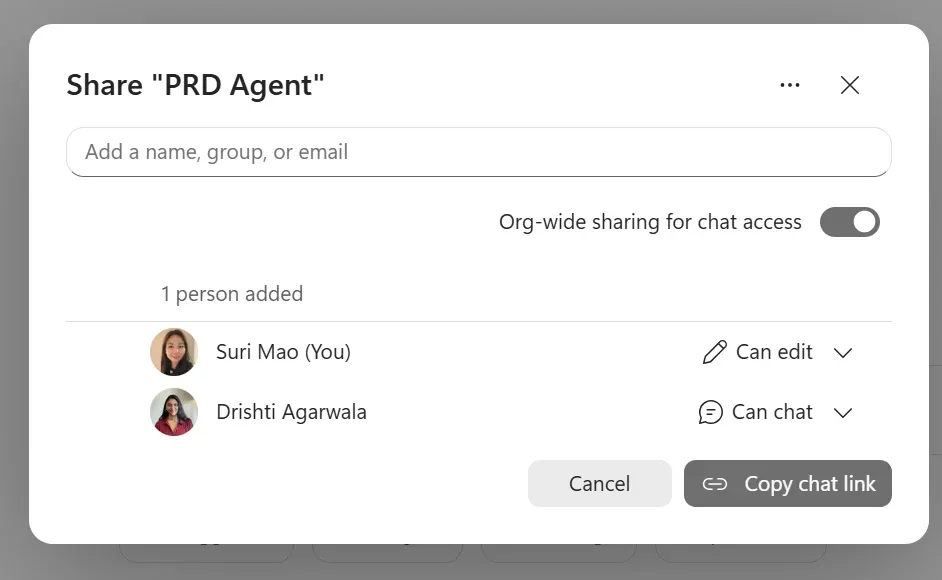
5. Share it
Choose who can use it and who can edit it, or share it with the whole organization if your admin allows it.
When to use each one
- Cowork: “Prepare the quarterly review: find the project’s email and documents, build a deck and schedule the meeting with the committee.” It’s a complex task that happens once.
- Agent: “Answer questions about the travel expense policy using the HR handbook.” It’s the same question, from many people, every day.
They don’t compete: they complement each other. Cowork handles the exceptional, and agents turn into routine what used to be explained over and over.
Before you start
- Review oversharing. Cowork and agents see what each person can already see. If sites are too open, they’ll find it in seconds.
- Set limits on Cowork. Create the spending policy with a monthly per-person limit and alerts.
- Decide who shares agents. Decide whether they can be shared with the whole organization and whether they go through the catalog before publishing.
- Start with one team. Pick a repetitive process, build an agent and measure how much time it saves before rolling it out further.
Sources
Reviewed on November 11, 2026.
- Copilot Cowork overview
- Copilot Cowork common questions
- Manage Copilot Cowork for your organization
- Usage-based billing and cost management for Copilot Credits
- Agent Builder overview
- Build agents in Agent Builder
- Microsoft 365 Copilot extensibility FAQ
- Agents admin guide for Microsoft 365
Screenshot credits: Microsoft, Agent Builder documentation on Microsoft Learn (MicrosoftDocs/m365copilot-docs), licensed under CC BY 4.0. Converted to WebP; the Configure tab screenshot is cropped. The cover illustration is original.