Microsoft Entra Conditional Access policy plans: fewer policies, exclusions defined once

Aitor García · 7 min read
Also in Spanish
What Conditional Access policy plans (preview) are, how they're evaluated, how they differ from standalone policies, and how to create or migrate one safely.
Leadership summaryIf this is all you read.
The risk. Every policy carries its own copy of the exclusions, and one policy missing an emergency access account is enough to lock people out.
The impact. Plans define shared targeting and exclusions once, and every change to them reaches all the rules in the plan.
The decision. Pilot policy plans in preview with a small set of related policies, always in report-only mode before enforcement.
Licensing. Microsoft Entra ID P1 or Microsoft 365 Business Premium; P2 for risk conditions; Microsoft Agent 365 for agent policies
Required roles. Conditional Access Administrator
For the people rolling it out ↓
On this page
Anyone who has run Conditional Access for a few years has seen this tenant. It started with five policies and now has dozens. One for Windows, one for macOS, one for iOS, one for Android, each including the same users and excluding the same emergency access accounts. When the break-glass group changes, someone has to open every policy and remember all of them.
Microsoft’s answer, now in preview, is Conditional Access policy plans. Here’s what they are, how the engine evaluates them, and what I’d do before putting one in production.
The problem: policy sprawl and duplicated exclusions
Microsoft’s own documentation names two symptoms I find in almost every Conditional Access review:
- Policy sprawl. When each platform needs different settings, you end up with one policy per platform, all repeating the same user targeting and exclusions. Every change to that shared part has to be made in each policy.
- Duplicated exclusions. Emergency access accounts, trusted service accounts and privileged workstations show up in the exclusion lists of many policies. Learn states plainly that missed exclusions are a common source of unintended lockouts.
The classic model has no inheritance. Each policy stands alone, and consistency across them depends on the team’s discipline.
What a plan is: shared conditions and rules
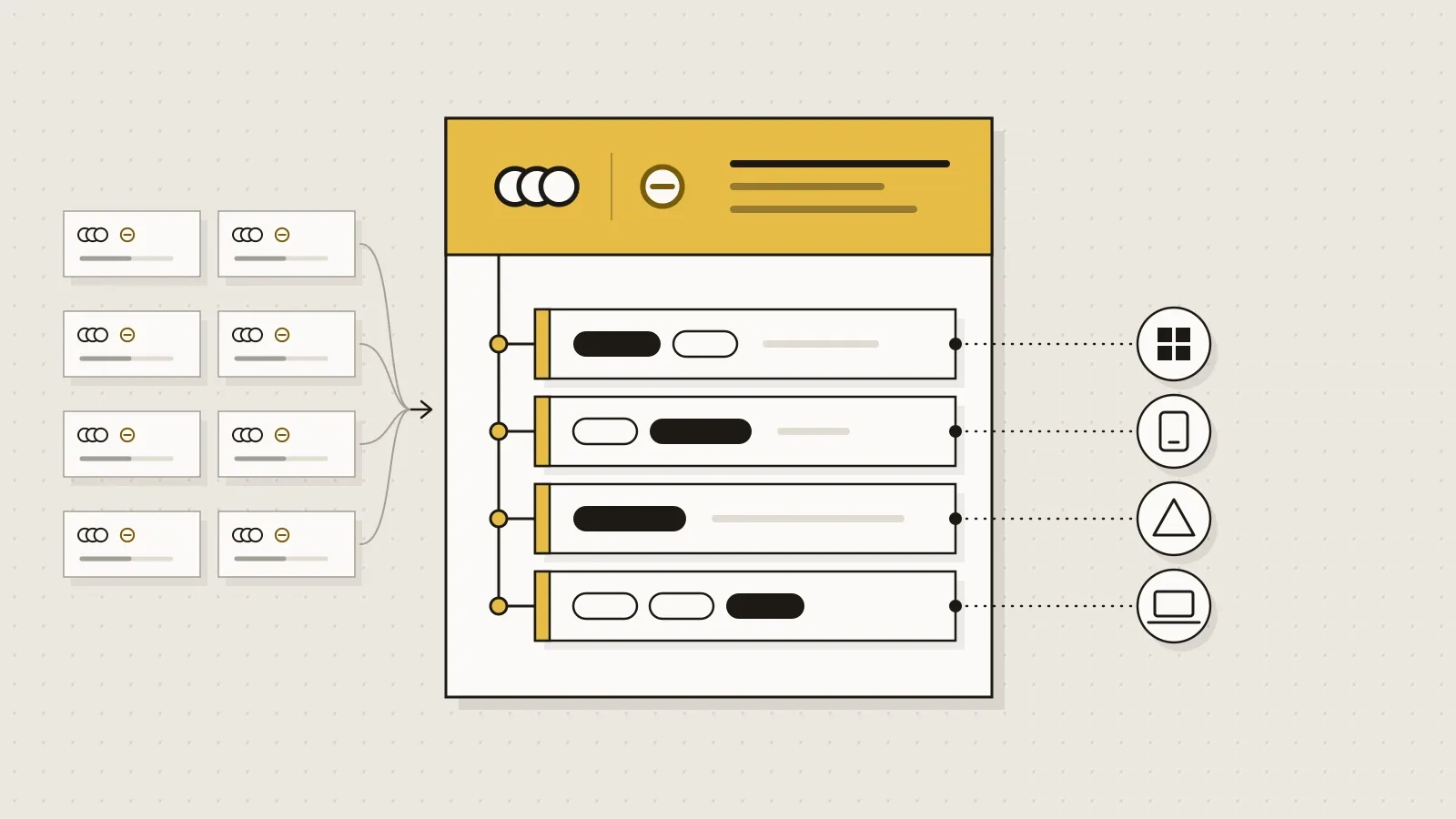
A plan groups related rules under common assignments and conditions. It has three parts:
- Plan details. Name, description, optional tags, and individual or group owners. Owners record accountability only: they don’t grant edit rights and have no effect on runtime enforcement.
- Shared conditions. Optional include and exclude targeting that applies to the whole plan: identities, resources such as applications, user actions, authentication context, risk levels, device platforms, network locations and client app types.
- Rules. Each rule is one enforcement scenario. It adds its own assignments and conditions plus its grant and session controls. Every plan needs at least one rule.
How the two layers combine is what you need to get right before designing a plan:
- Plan targeting is inherited. If the plan targets group A, every rule inherits that scope. A rule can’t narrow it, but it can add exclusions of its own.
- Exclusions accumulate. If the plan excludes groups A and B and a rule excludes C, the effective exclusion list is A, B and C. A rule can never remove a plan-level exclusion.
- Identity type must be consistent. Shared conditions can’t mix users with agents or workload identities. To cover several identity types in one plan, leave identity assignment to the rules.
- All users and All resources are available in rules only, not in shared conditions.
How evaluation works
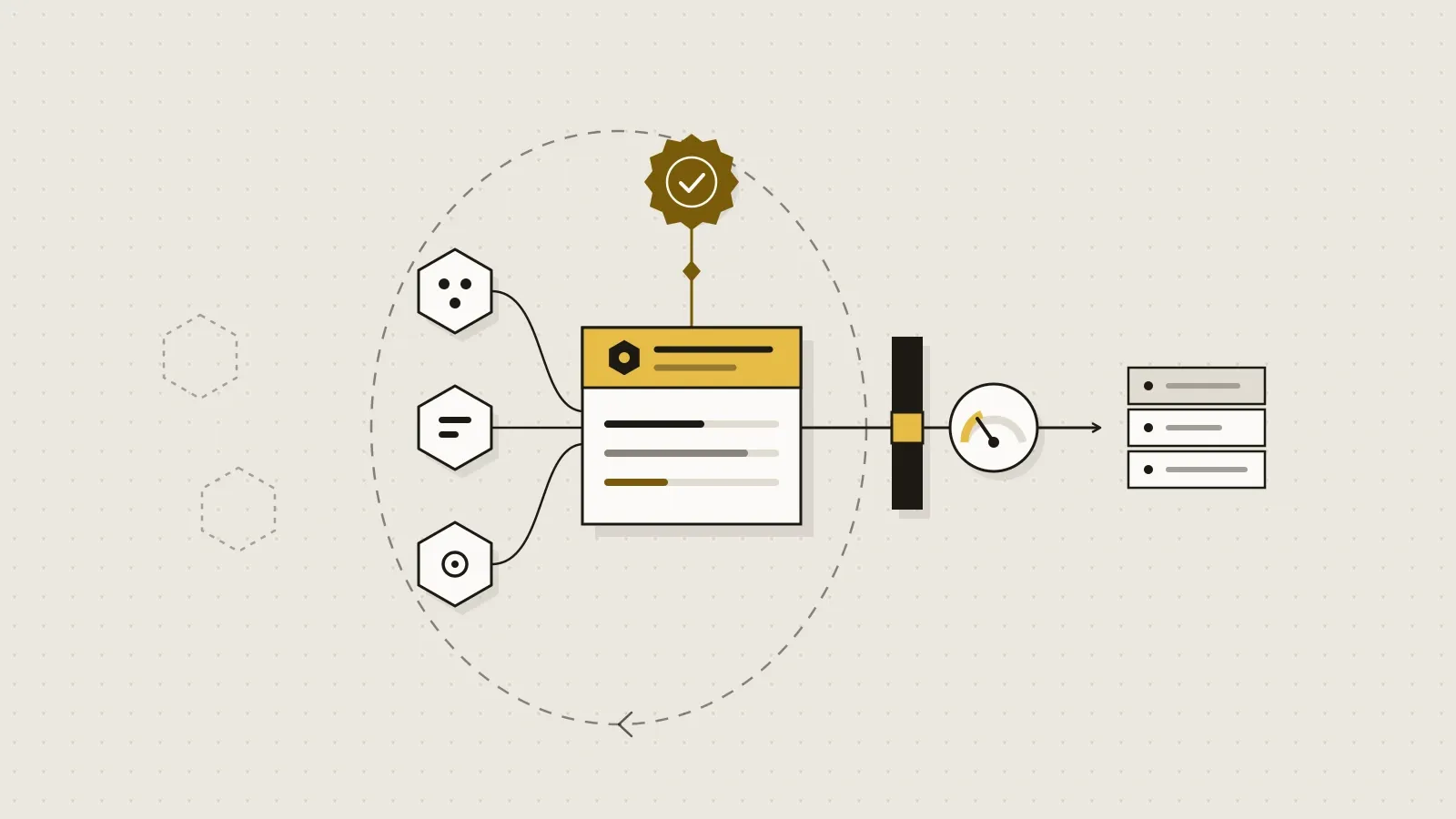
At sign-in, the engine combines each rule’s conditions with the plan’s shared conditions to build that rule’s full targeting. Each rule is then evaluated as an independent decision, exactly like a standalone policy, and shows up as its own entry in the sign-in logs.
Plans sit next to your existing policies; they don’t replace them. The engine evaluates both, and every applicable policy and every applicable rule must be satisfied for access to be granted. There’s no precedence between them. That detail matters when you migrate.
Standalone policies vs. plans
| Standalone policy | Plan and rules | |
|---|---|---|
| Targeting | Defined per policy, duplicated across policies | Defined once in the plan and inherited by every rule, or set per rule |
| Shared exclusions | Repeated in each policy | Set in the plan; no rule can remove them |
| Change management | Each policy updated on its own | One change to shared conditions reaches every rule |
| Templates | One template per policy | Several templates combined in one plan, or one per plan |
| Sign-in logs | One entry per policy | One entry per rule |
Where plans fit
Learn highlights three scenarios:
- Device platforms. One plan holds the users and common exclusions; one rule per platform holds the controls that platform needs.
- Global Secure Access. According to Microsoft, organizations deploying Global Secure Access often need hundreds of network-scoped rules over the same users and apps. A plan defines that common part once, and each rule only describes its network scope.
- Agents. Agent identities can act with their own permissions or on behalf of a user. A plan can hold a shared condition such as high agent risk, with separate rules for agent users and autonomous agents. Because a plan can’t mix identity types at the plan level, identity assignment goes in each rule.
Check licensing before the agent scenario. Conditional Access for agents requires Microsoft 365 E7, or Microsoft Agent 365 paired with at least Microsoft Entra ID P1 or Microsoft 365 E3. Agent risk-based policies also need Entra ID P2 or Microsoft 365 E5.
Create a plan from a template
Templates create the plan, its shared conditions and one or more rules in one flow, including templates that secure agent activity. You need the Conditional Access Administrator role.
- Sign in to the Microsoft Entra admin center as at least a Conditional Access Administrator.
- Go to Entra ID > Conditional Access > Policy plans (Preview).
- Select Create policy from template.
- Select Use template on one or more templates, then Create plan.
- On Create plan from templates, adjust the name, review the prepopulated targeting under Shared conditions, and select Create policy plan. Every generated rule starts in the Off state.
- Open the plan with Edit plan, then use Add Users > Exclude to add your emergency access accounts and any service accounts that must stay out of every rule.
- Review each rule in the Rules list: name, conditions and grant controls.
- Change each rule’s State from Off to Report-only and check the effect in the sign-in logs before you move it to On.
If no template fits, build the plan from scratch with Create policy in the same blade. Microsoft’s guidance matches mine: shared conditions hold only what applies to every rule, and anything that varies by scenario belongs in the rule.
Migrate existing policies
Migration has its own wizard and leaves your original policies untouched. Start from Entra ID > Conditional Access > Policies, find the Migrate to Conditional Access Policy plans (Preview) banner and select Get started. Pick the policies, select Merge policies into a plan, and the tool proposes a structure: settings the policies share become shared conditions, and each policy maps to a rule that keeps what’s unique to it. Migrated rules also start in Off.
Learn suggests grouping by protected resource, by persona or by a shared condition, and migrating incrementally. I’d start with the smallest, best-understood group you have. Per-platform policies are a good first candidate.
After migrating, add new scenarios with the same security objective as rules in the plan instead of creating another standalone policy.
Preview limitations and recommendations
Policy plans are in preview under the Supplemental Terms of Use for Microsoft Azure Previews and might not have every capability of a generally available feature. The specific limitation Microsoft documents is this one: during preview, plans that target users with Location as a condition are issued one-hour access tokens without the instant IP enforcement check. If your location policies rely on continuous access evaluation (CAE) to cut sessions when the network changes, keep those policies out of plans until this is lifted.
My recommendations from the field:
- Emergency access and service accounts in shared conditions. This is the clearest improvement over standalone policies. Excluding them rule by rule throws it away.
- Report-only, every time. Rules start in Off; move them to Report-only and review the impact before enforcing.
- One objective per plan. A “compliant devices” plan and an “agent activity” plan are easier to reason about than one plan that holds everything.
- Real owners. The owner field grants no permissions, but it tells the next admin whom to ask before changing the plan.
- Licensing. Plans follow the same requirements as policies: Entra ID P1 (or Microsoft 365 Business Premium), P2 for sign-in and user risk, plus the agent licenses above.
References
- What are Microsoft Entra Conditional Access policy plans? (preview)
- Create a Microsoft Entra Conditional Access policy plan (preview)
- Migrate Microsoft Entra Conditional Access policies to a policy plan (preview)
- What is Conditional Access? License requirements
- Microsoft Entra licensing
- Conditional Access for agents
- Secure autonomous agents with Conditional Access
- Continuous access evaluation: limitations