Project Perception: the team of AI agents Microsoft is bringing to the Defender SOC

Aitor García · 8 min read
Also in Spanish
What Microsoft Project Perception is, which agents it includes, how playbooks, sessions and approval gates work, and what permissions it needs. Invitation-only preview.
Leadership summaryIf this is all you read.
The risk. Agents with their own identity that triage alerts, investigate incidents and propose actions such as isolating a device. Poorly scoped or loosely supervised, an agent's mistake becomes a SOC decision.
The impact. Perception covers triage, tier-2 investigation, threat intelligence, attack paths, posture prioritization and detection rules from the Defender portal. It is an invitation-only limited preview and may change.
The decision. Prepare URBAC, roles and the agent identity model now, and decide which actions always require human approval before giving any agent autonomy.
Required roles. Security Admin to set up agents; Security Reader to use them and view sessions
For the people rolling it out ↓
On this page
For a couple of years we have used AI in the SOC as a copilot. You ask, it summarizes an incident, it writes a KQL query. The analyst drives, and the AI answers when spoken to.
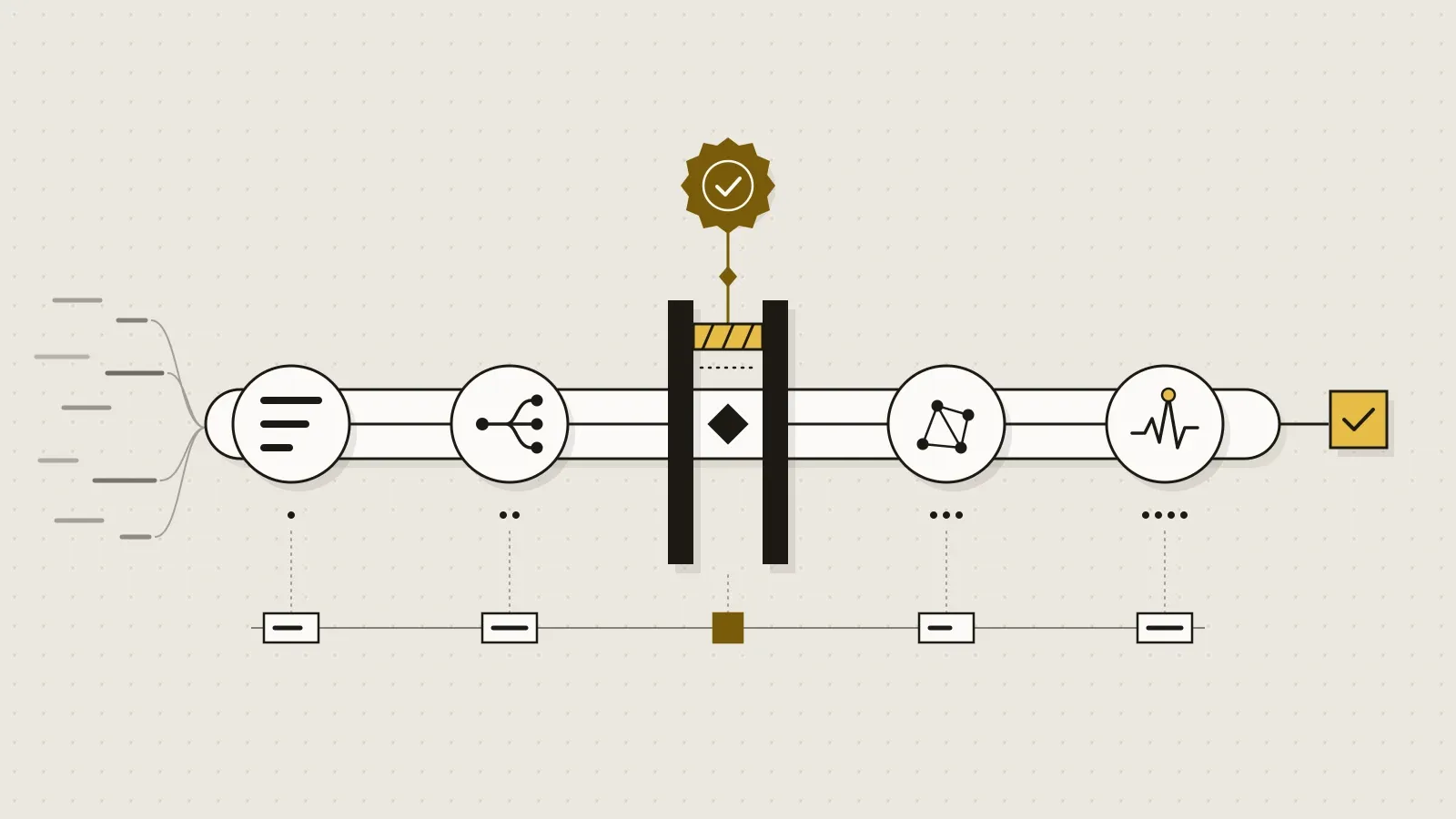
Project Perception changes that split. Microsoft describes it as a multi-agent system for the SOC inside the Microsoft Defender portal: several specialized agents, each with its own identity and permissions, passing work to one another, asking for approval before high-impact actions and leaving an immutable record of everything they do.
For a CISO, the question stops being “what will the AI tell me?” and becomes “what do I let it do, under which identity, and who approves it?”. That is what this article is about.
From copilot to a team of agents
Perception groups its agents into three teams:
- Red: simulates the attacker to find gaps first.
- Blue: detects, triages and investigates.
- Green: remediates and hardens posture.
The design is a closed loop. The Protect against a threat playbook shows it well: the Threat Intelligence Agent analyzes an article about a campaign, the Recon Agent maps how that attacker could move through your Azure environment, the posture agent ranks what to fix, and the detection agent writes the missing rules. Each agent’s output is the next agent’s input.
Microsoft lists SOC analysts, detection engineers, security architects, IT administrators and leaders such as the CISO as intended users.
The agents and what each one does
| Agent | Team | What it does, per Learn |
|---|---|---|
| Triage Agent | Blue | Classifies supported alerts as true or false positives and explains why. Learns from context and analyst feedback. Runs automatically when a supported alert is created, or manually through the Triage alert playbook. |
| Attack Investigation Agent | Blue | Tier-2 investigation of Defender incidents: verdict, timeline, attack graph, affected entities, IOCs and remediation actions. |
| Threat Intelligence Agent | Blue | Extracts threat actor profiles, MITRE ATT&CK techniques, IOCs, CVEs and KQL hunting queries from a threat intelligence article. |
| Detection Authoring Agent | Blue | Finds coverage gaps and produces KQL detection rules tailored to a specific actor’s techniques. |
| Recon Agent | Red | Read-only, attacker-style reconnaissance of Azure: attack paths, choke points, valuable assets, misconfigurations and excess permissions. |
| Posture Prioritization Agent | Green | Ranks posture findings by real-world risk: exploitability, active exploitation, internet reachability, asset criticality and attack-path context. |
The Recon Agent deserves a closer look. Exposure Management builds attack paths from assets marked as critical or internet-exposed, or from sensitive identities. The Recon Agent starts from any asset or identity in a subscription and answers an assumed-breach question: if an attacker already controls this, how far can they get? That is exactly the case of an ordinary user whose session is stolen by phishing. Its report labels each finding as confirmed, likely or inferred, and it never modifies, exploits or interacts with the resources it analyzes.
Playbooks, sessions and approval gates
Playbooks
A playbook is a reusable template that defines the work, the agents that do it and the input it needs. In this release Microsoft publishes them and they are read-only: you can’t create, edit or delete your own. The current set is Triage alert, Protect against a threat, Investigate attack, Extract threat intelligence, Identify attack paths, Plan for posture remediation and Assess identity risks.
Two rules worth knowing:
- A playbook is only active when all of its agents are set up and enabled.
- Every playbook can run manually. Some support an automation rule (event-triggered or, if they take no input, scheduled), with only one active rule per playbook. Creating or editing rules requires Security Admin.
You can start them from the Playbooks page, from an incident or threat intelligence article in the portal, or from Chat, which interprets a natural-language request, picks the playbook and fills in the inputs it can infer.
Sessions
A session is the record of everything the agents do: inputs, conversation, artifacts, approvals and human interventions. Learn describes sessions as immutable, an audit trail nobody can rewrite later. Statuses are In progress, Waiting for input, Completed, Ended with Failures and Stopped. A stopped session can’t be resumed; you start a new one.
Approval gates
When an agent needs permission for a significant action (Learn’s examples are disabling a user account or isolating a device), the session moves to Waiting for input. The analyst sees what the agent wants to do and why, and has three options:
- Approve: the agent proceeds.
- Reject: the agent skips that action and continues with the rest. You can give a reason.
- Suggest an alternative: specific guidance such as “isolate the device instead of disabling the user account”. The agent updates its plan and asks for approval again, or explains why it can’t.
Stop is always available and ends all work in the session for good. One operational detail: agents stay paused until someone answers. If nobody watches the waiting queue, the fastest agent in the world waits just like a forgotten ticket.
Requirements and permissions
What Learn requires to get started:
- Access to the Microsoft Defender portal.
- URBAC enabled across all Defender workloads.
- The agent identity must have access to every scope it needs if you restrict access with Defender for Endpoint device groups or URBAC scoping.
Permissions work per agent, not per playbook:
| Role | What it allows |
|---|---|
| Security Admin | Set up agents: identities, permissions, editing and removal. At least one user in the organization must have it. |
| Security Reader | Use configured agents: start sessions, interact with them and view their details. |
During setup, the wizard creates a Microsoft Entra Agent ID for the agent. Learn stresses a point that will cause more than one support ticket: the agent identity doesn’t inherit access to scoped resources, and a role assignment alone isn’t enough. For Defender for Endpoint device groups you must add the Agent ID to an Entra security group assigned to each device group, manually. If the agent sees fewer scopes than the analysts using it, sessions fail or return incomplete results.
The Recon Agent needs more:
- Microsoft Entra ID P2, Microsoft Defender XDR and an Azure subscription.
- Eight read-only Microsoft Graph application permissions (such as
User.Read.All,Policy.Read.AllorAuditLog.Read.All), granted by a Privileged Role Administrator. - The Reader, Key Vault Reader, Log Analytics Reader and Security Reader roles at subscription scope, assigned by a Role Based Access Control Administrator. Learn publishes a PowerShell script for it.
These pages don’t cover Perception’s overall licensing or cost. The Insights section includes a Cost and Usage dashboard, but Learn doesn’t explain what it measures or how it’s billed. Until Microsoft publishes it, there is no number to give.
Safeguards
Perception’s application card lists the mitigations:
- Approval gates for high-impact actions.
- Least-privilege identity: each agent only sees what its Agent ID allows.
- Read-only Recon.
- Immutable sessions and visible reasoning in a process log.
- Azure OpenAI content filtering and responsible AI checks on every output.
- Tenant isolation: prompts, session content and outputs are Customer Data and aren’t used to train foundation models.
- Processing location: if your Customer Data is stored in the EU, prompts are processed in the EU. Otherwise in the US, UK, EU or Australia and New Zealand, depending on GPU availability.
The same card is just as clear about limits: agents can produce inaccurate, incomplete or outdated output, quality depends on the data and permissions they have, and each agent is built for its task and shouldn’t be repurposed. It names the risk of overreliance: in Perception that can mean missed threats, wrong incident conclusions, ineffective detection rules or remediating the wrong resources.
How to prepare even without access
This part is my opinion as a consultant. Most customers won’t get an invitation at this stage, but almost everything Perception requires can be prepared today, and it pays off even if you never turn it on.
- Enable URBAC across all Defender workloads. It’s an entry requirement, and many organizations still manage permissions per product. Migrating the role model means reviewing every assignment, better done calmly than in a rush the day the invitation arrives.
- Clean up your scopes. Inventory your Defender for Endpoint device groups and URBAC scoping. If an agent ever has to see everything your SOC sees, you need to know what “everything” is.
- Define Agent ID governance. Who creates agent identities, who reviews them, which permissions they get and how they are retired. An agent identity needs the same lifecycle as a privileged service account, or a stricter one.
- Write the approval policy before the automation policy. Decide which actions always require a human (disabling accounts, isolating critical devices) and who can approve them on each shift. The documentation suggests reducing approval gates for agents with a good track record; I would put in writing what track record, measured how.
- Introduce autonomy gradually. That is Microsoft’s own recommendation. Learn suggests starting with the Threat Intelligence Agent and the Triage Agent because their permissions are limited. I’d do the same: manual sessions with every result reviewed first, then a narrow automation rule, and only then expand.
- Measure against your own judgment. Each agent’s Performance tab shows success rate, approvals granted and automatic initiations. Compare that with your analysts’ conclusions during a trial period. If the SOC stops reviewing because “the agent is usually right”, that is the overreliance the documentation warns about.
- Give someone ownership of the waiting queue. An approval gate with no owner turns human oversight into a bottleneck, and the pressure to clear it ends in approvals that are automatic in all but name.
For a CISO, the underlying change is about accountability. With a copilot, the analyst caught the AI’s mistakes while reading its answer. With agents that act, control lives in the design: which identity each agent has, what it can touch and who signs off on each action. That gets decided before anything is switched on.
References
- What is Perception?
- Key concepts in Perception
- Get started with Project Perception
- Application card for Project Perception
- Perception Navigation
- Agent categories in Project Perception
- Work with agents in Project Perception
- Work with playbooks in Perception
- View and manage sessions
- Approve, reject, or stop agentic work
- Use the Recon Agent in Project Perception
- Microsoft Defender unified role-based access control (URBAC)
- What are agent identities? (Microsoft Entra Agent ID)